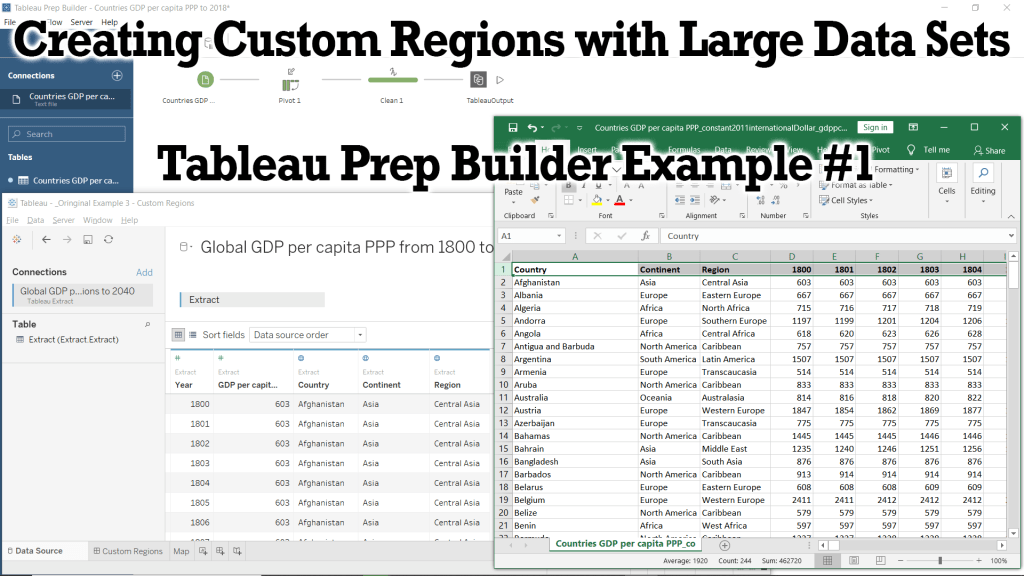
In this Tutorial we will be preparing our data using Microsoft Excel and Tableau Prep Builder to create a .hyper data extract which we will use in future Tutorials and Examples. Tableau has a powerful built-in mapping system that is able to map information down to the zip-code and counties of most countries, but does not have a built-in method of creating our own custom regions (or territories). To do this, we must create a group by coding the custom region into our data as a variable for Tableau to place a country (or state/province) within your custom region. In this example, we will add a Continent and Region variable to our dataset which will create two new groupings and allow us to analyze and visualize our data based on our new groups.
This example was made using Tableau Prep Builder 2020.1 and Microsoft Excel 2019.
If you do not have access to a copy of Excel, then I recommend using Google Sheets in its place.
You can view the Video of this walk-through here, but I recommend reading through the steps first before watching the video guide.
In our example we will be using data from Gapminder.org, and you can download the data here.
Step 1: Initial Preparation with Excel
In order to create your own custom regions in tableau, you must add the custom region to every single row of data. To do demonstrate how to do this, we will be using a dataset from Gapminder.org containing information on the GDP (PPP) per capita (in 2011 Int$) from 1800 to 2018 (with projections to 2040). This dataset is perfect for this example, as it is initially structured in a way which is easy for us to edit, but must be pivoted to work in Tableau.
If you are working with a large dataset that is already structured in a way that is usable with Tableau, then you will have to skip to Step 2 and first pivot your data, then return here to Step 1 and continue as normal.
- Open gdppc_cppp-by-gapminder.xlsx in Excel
- Optional: Download gdppc_cppp-by-gapminder.xlsx
- Open Excel.
- Click Open.
- Click Browse.
- Navigate to your file’s location.
- Select gdppc_cppp-by-gapminder.xlsx
- Click Open.
- Optional: Enable Editing
- Find the yellow warning bar undernearth the menu bar.
- Click Enable Editing
- Save countries_and_territories as .csv
- Right-click the countries_and_territories sheet in the bottom left corner of the window
- Select Move or Copy…
- Choose (new book) from the To Book drop-down menu
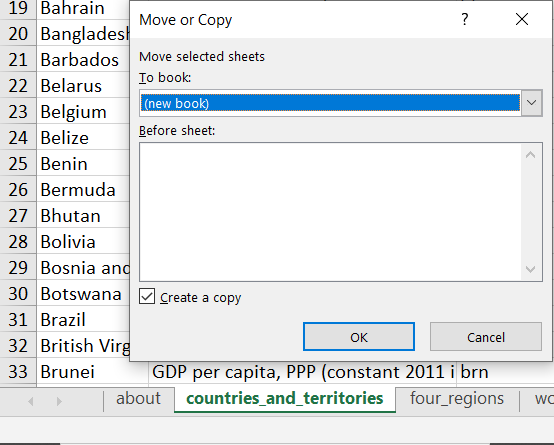
- Click the check-box next to Create a copy
- Save As Custom Regions Tableau Example.csv
- Click File from the menu bar
- Select Save As
- Click Browse
- Navigate to your projects location
- Type Custom Regions Tableau Example for the File name
- Choose CSV (MS-DOS) for the Save as type
- Click Save
- Note: gdppc_cppp-by-gapminder.xlsx is still open in the background and I recommend closing it to prevent confusion.
- Save As Custom Regions Tableau Example.csv
- Adding our custom regions to the dataset
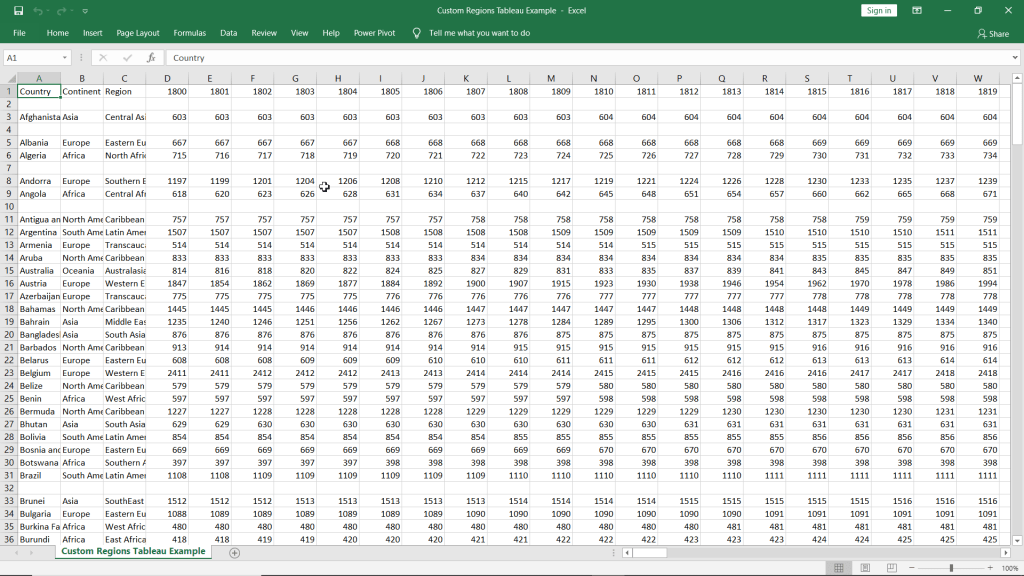
- Normally you would have to manually input the Continent and Region for each country, but I have already done this for us.
- Download List of every Country with Continent and Region.csv
- Open List of every Country with Continent and Region.csv in Excel
- Highlight Columns A, B & C
- Click and hold on the A column header (above the country in cell A1) to highlight the entire column
- Then move your cursor over to the C column header (above region in cell C1) to highlight everything in Columns A through C.
- Copy Columns A, B, & C
- Either press Copy from the Home ribbon
- Or press Ctrl+C on windows, cmd+C on macs.
- Return to your Custom Regions Tableau Example.csv
- Right-click on the A column header (above Country in cell A1)
- Select Insert Copied Cells
- Highlight Columns D, E, F, & G
- Right-click on the D column header
- Select Delete
- Save your workbook
- Close Excel
Step 2: Pivoting our data in Tableau Prep Builder
If we were to go straight into Tableau Desktop from here, then you see over 200 variables with headers such as F126 or 1856. This is because the data is currently structured “long” or horizontal, but we need the data structed “tall” or vertical for our analysis in Tableau. To achieve this we need to transform our data so that each column contains information on just 1 type of data (such as year and gdp). We will utilize another program in the Tableau workspace called Tableau Prep Builder to pivot our data and transform it into a format that Tableau Desktop can read and interpret.
- Connect to Custom Regions Tableau Example.csv
- Optional: Download Custom Regions Tableau Example.csv
- Open Tableau Prep Builder
- Click on the white + next to connections
- Select Text file (under Connect To a file)
- Select First line contains header under Text Options
- Save as Custom Regions Tableau Example
- Create a new Pivot step in the workflow
- Click the + next to Custom Region… in the workflow view
- Select Pivot
- Add 1800 through 2040 to the Pivoted Fields section
- Click on 1800 under Fields
- Hold down shift and click on 2040
- Click and hold any of the highlighted fields
- Drag them to the Pivoted Fields section
- Create a new Clean Step from Pivot 1
- Rename Pivot1 Names to Year
- Right-click on the Pivot1 Names card (above 1800)
- Select Rename Field
- Type Year
- Press Enter
- Rename Pivot1 Values to GDP (PPP) per capita ($)
- Remove null Country entries
- Right-click null in the Country card
- Select Exclude
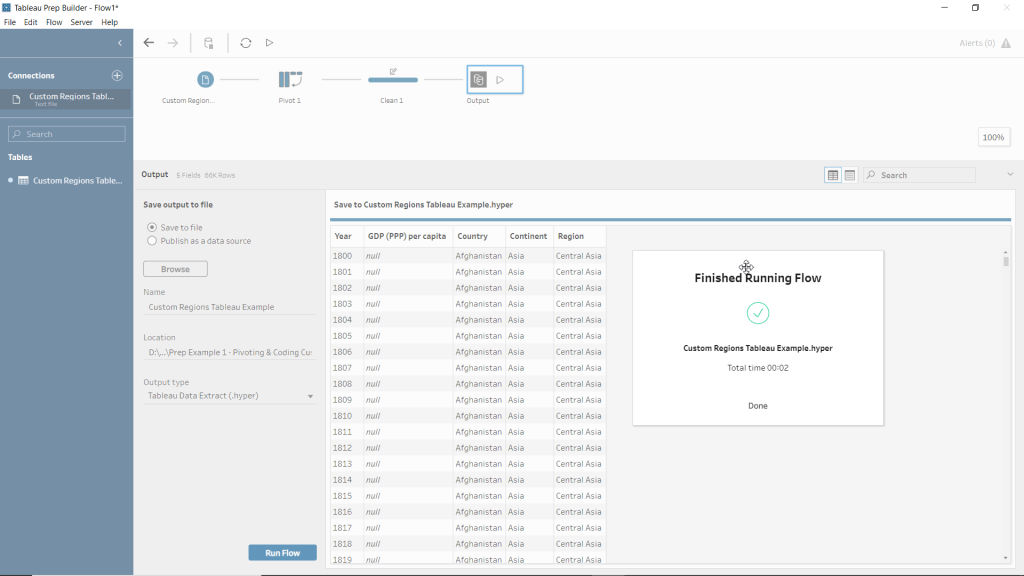
- Create an Output step
- Change output type to Tableau Data Extract (.hyper)
- Save as Custom Regions Tableau Example.hyper
- Click Browse, under Save output to file
- Navigate to your projects folder location
- Type Custom Regions Tableau Example for the File name
- Click Accept
- Run All Flows
- Click Run Flow from the output pane
- Click the Run all flows button that looks like an arrow head pointing right above the view.
- Click Flow from the menu bar then select Run All
- Press Ctrl+R
Congratulations!! You have just added custom regions to your data with Excel and used Prep to transform your data into a usable format! Now that you have completed these steps, you can now move on to my Tableau Example #3 – Custom Regions and use our new dataset to create data visualizations that can show us information on a per country, per region, and per continent view.
Please follow me on social media:
YouTube
Reddit
Tableau Public Profile
My Personal Blog
JoshuaPaulBarnard.com
 Joshua Paul Barnard's Blog
Leave a comment